 Latch
LatchEscape does nothing.
Latch pins a lecture or a PDF in full screen. When it gets hard and your hand goes for the way out, nothing happens. Built for the version of you who wants to quit.
Go on, press Esc on this page.
You are forty minutes into a lecture.
It gets hard. Your hand reaches for ⌘ T before you have decided anything.
Latch is what happens next.
What it stops
Once the lecture is in full screen and Latch is on, the usual ways out stop working.
- EscNothing
- ⌘R ⌘LNothing
- ⌘T ⌘W ⌘N ⌘1 to 9Nothing
- F or the player's full screen buttonNothing
- Switching to another tabYou are put back
- Typing a different addressYou are put back
- Closing the tabIt reopens, still locked
- Holding Esc for two secondsThe lock screen
The video pauses as well, so a lecture is never playing to an empty room. Escape is held back with the browser's Keyboard Lock API, the one cloud gaming sites use. Holding it for two seconds always forces full screen off; no page can take that away, and none should.
Getting out takes a hold
A click is a reflex. Eight seconds is a decision. Letting go starts the count again, so it can't be chipped away in bursts, and the popup and the shortcut can't end a lock early.
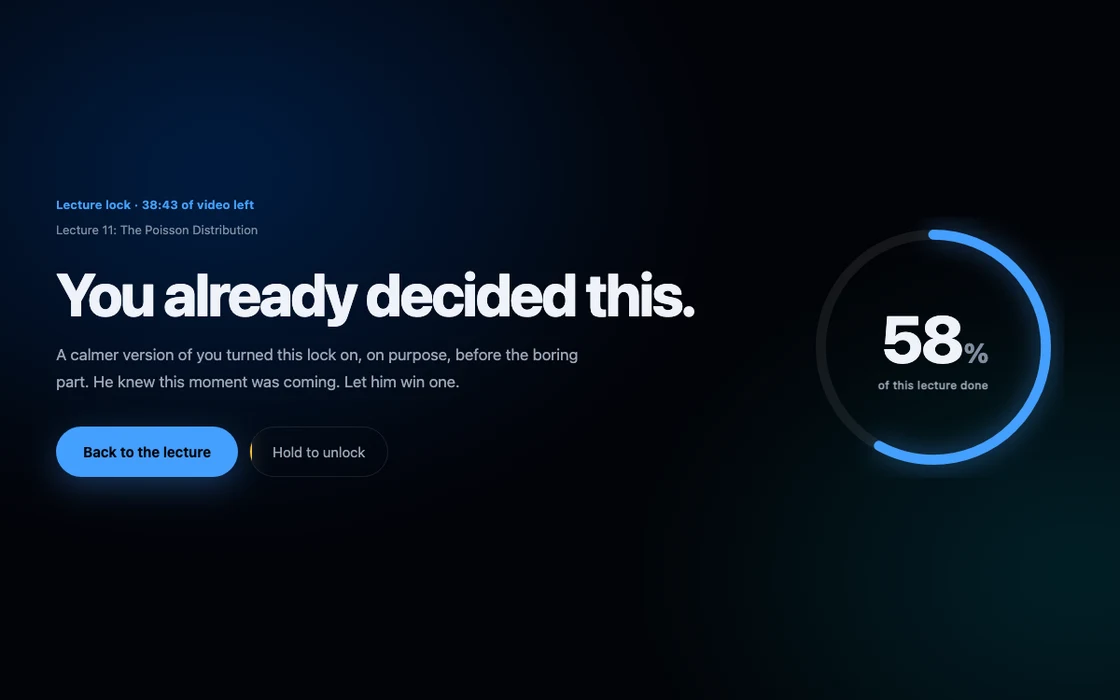
Try it. In Latch it is eight seconds; here, three.
48 platforms, and your PDFs
The lock is a browser feature, not a YouTube one, so it works wherever the lecture is.
Video and the big courses
YouTube, Udemy, Coursera, edX, Udacity, FutureLearn, Codecademy, Pluralsight, Skillshare, DataCamp, Educative, Alison, MasterClass, Domestika, LinkedIn Learning, O'Reilly
India
NPTEL, SWAYAM, Unacademy, Physics Wallah, Vedantu, BYJU'S, Doubtnut, Testbook, Scaler, Coding Ninjas, upGrad, Great Learning, Simplilearn
Developer courses
Frontend Masters, egghead.io, Laracasts, Scrimba, Treehouse, Vue School, LeetCode, Code with Mosh
Universities
MIT OpenCourseWare, Stanford Online, Khan Academy, Brilliant
Course hosts
Teachable, Thinkific, Kajabi, Podia, Maven, Vimeo
Readings
Google Drive's file viewer, and any PDF open in Chrome, including ones on your own disk. Press the Lock this reading button Latch adds to the corner.
And anywhere else. An unlisted site still locks: Latch finds the full screen button by its accessibility label, which players rarely change, instead of class names, which they change all the time.
Every way out, written down
Using Latch turned up eight real ways around it. Patching them one at a time kept missing the pattern behind each, so all of them are documented, with what closes them.
- Guards that only ran in full screenWhich is false exactly when the lock screen is up, so the screen shown to someone trying to leave was the least protected part.
- Load orderAfter a reload the lock screen goes up before the site has built its player, so some things need doing twice.
- RacesClosing the locked tab reopens it, and two guards read the briefly missing tab as the end of the session. Now exactly one place can end one.
Left open on purpose: holding Escape, removing the extension, quitting Chrome, ⌘Tab, incognito, other extensions, another browser. A lock with no way out would be a dangerous thing to build. The full audit is in ESCAPES.md.
Install it in two minutes
Latch is not on the Chrome Web Store yet, so you load it yourself. It works in Chrome and other Chromium browsers.
-
Get the code
In Terminal:
git clone https://github.com/saksham10arora-dotcom/latch.gitNo git? Download the zip and unzip it somewhere it can stay.
-
Load it in Chrome
Open
chrome://extensions, turn on Developer mode, click Load unpacked, and choose the latch folder. -
Close the back doors
On Latch's Details page, turn on Allow in Incognito, or a private window is an easy way out. If you read PDFs from your own disk, turn on Allow access to file URLs too.
-
Lock a lecture
Play a lecture, go full screen, and press Option Shift L. For a PDF, press the Lock this reading button in the corner. If the shortcut does nothing, another extension took it; set your own at
chrome://extensions/shortcuts.
Privacy
Latch collects nothing, sends nothing, and has no server. There is no network code in it at all.
Six values, kept on your computer, readable only by Latch. Uninstalling removes them.
armedwhether the lock is onengagedwhether full screen started under this lockholdSecondshow long the unlock hold lastsphrasethe optional phrase you retype to unlockstrictwhether to warn before closing the tabbreakshow many times the lock screen has appeared
From the page, it reads only the video's time and the lecture's title, to draw the lock screen. The full policy.
Questions
Is it free?
Yes, and open source under the MIT license.
Can I get trapped?
No. Holding Escape for two seconds always leaves full screen and brings up the lock screen, and from there an eight-second hold unlocks it. You can also remove the extension or quit Chrome. Latch makes leaving cost something; it does not make it impossible.
Which browsers?
Chrome and other Chromium browsers, on Mac, Windows and Linux. Firefox would need its own version.
My course site isn't on the list.
Try it anyway. The lock works on unlisted sites by finding the player's full screen button through its accessibility label. If something doesn't work, open an issue on GitHub.
Does it work on every PDF on the web?
No. It locks PDFs on the platforms above and files on your own disk. Covering every PDF online would mean asking to read every website, which is far more access than a focus tool should have.
Why can't the popup or the shortcut end a lock?
Every way out has to cost the same, or the cheapest one becomes the only one anybody uses.